I uploaded a drawing when I created the project. Where is it?
It is already there, and that is why the upload area has gone. You picked the file while creating the project, so it uploaded with the project and the page opens ready to work on it. There is nothing else to upload.
Your drawing appears in two places on the project page:
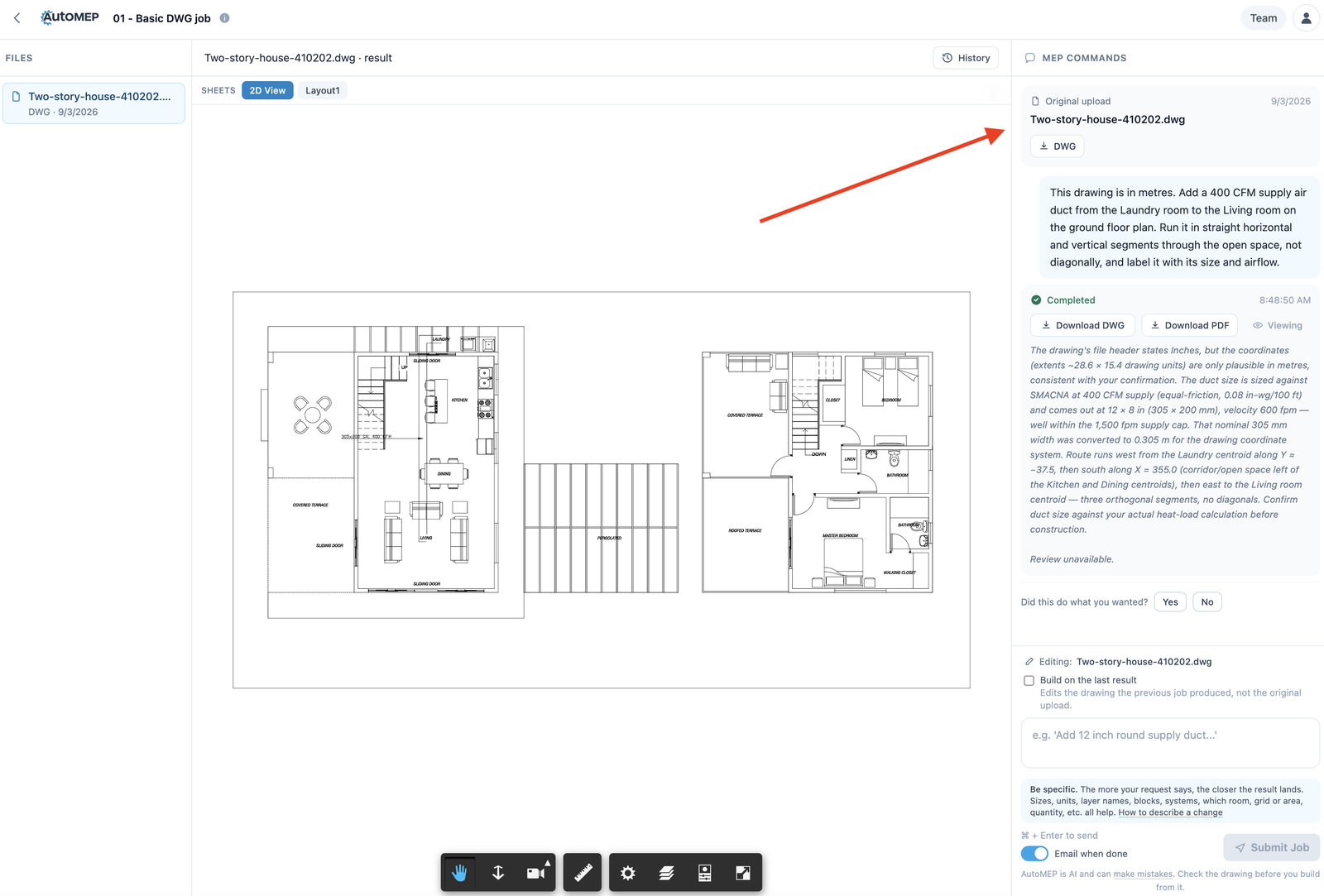
So you can go straight to the box at the bottom of the right hand panel and describe the change you want. You do not need to upload anything again.
To work on a different drawing, use Add a drawing at the bottom of the Files column on the left. The new file joins the same project and opens its own set of commands, so each drawing keeps the history of every change made to it and the record stays straight when you come back months later. Switch between them in that column. You can still create a separate project when the work is genuinely a different job.
In Guided mode the project opens as a chat with the AutoMEP Agent rather than this page. Your drawing is already uploaded there too, so type your next request in the box at the bottom. Each drawing has its own thread there as well, and the drawing menu in that box switches between them. To add another drawing, pick Add a drawing in that menu or drop the file anywhere on the page, then choose Add to this project, which opens a new thread for it, or Start a new project with it.
Your drawing appears in two places on the project page:
- Files, down the left, with its name and the date you uploaded it.
- Original upload, at the top of the panel on the right, with a button to download it back.
So you can go straight to the box at the bottom of the right hand panel and describe the change you want. You do not need to upload anything again.
To work on a different drawing, use Add a drawing at the bottom of the Files column on the left. The new file joins the same project and opens its own set of commands, so each drawing keeps the history of every change made to it and the record stays straight when you come back months later. Switch between them in that column. You can still create a separate project when the work is genuinely a different job.
In Guided mode the project opens as a chat with the AutoMEP Agent rather than this page. Your drawing is already uploaded there too, so type your next request in the box at the bottom. Each drawing has its own thread there as well, and the drawing menu in that box switches between them. To add another drawing, pick Add a drawing in that menu or drop the file anywhere on the page, then choose Add to this project, which opens a new thread for it, or Start a new project with it.
More in Getting Started
Did this answer your question? If not, contact support and send us the drawing.